

Looking to import a full Figma library? Book a
call and our team will help. We are working
towards making this self-serve!
Connect your Figma account
Before importing, connect your Figma account to Magic Patterns. This enables both copy-paste and URL-based imports, and lets us use the Figma MCP Server to extract richer design data for higher-quality imports.The Figma MCP Server is only available for
Dev and Full Figma accounts.
Free and Collab accounts will still work but may have less precise
imports.Import a component into your Design System
Open your Design System and create a component
Go into your Design System, open the Components page, and click Create Component. Choose the Import from Figma tab.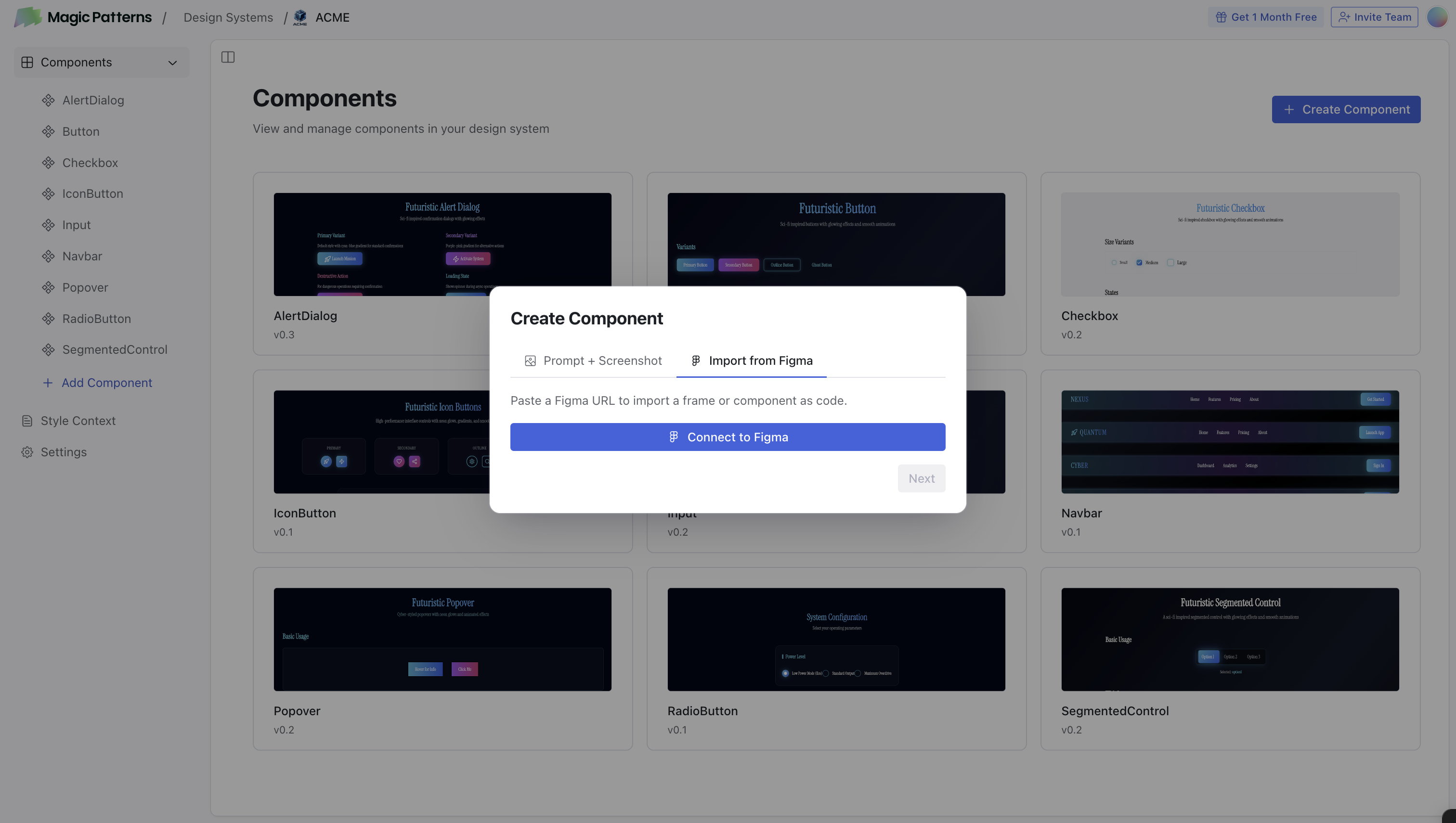
Copy the link to a frame in Figma
Select a frame or component in Figma, right click and choose Copy as → Copy link to selection (or press
CMD + L).You can import one frame at a time. Import from Figma won’t always produce
a pixel-perfect frame, because every Magic Patterns design is code-first and
interactive, whereas Figma frames are not.
Learn more
Import from Figma
The full guide to importing designs and components from Figma, including
copy-paste and URL imports.